Implementing Program Support in Project Server 2010

Many organizations that have a more than average number of projects, usually are grouping projects into programs and portfolios. In this post and next one I will describe the best ways how to enable support of "Programs" in Project Server 2010 and how our products can help.

Out-of-the-box solution - Master Projects / Sub Projects

In Project Server by default there is no concept of "Program", but project sever supports the so called "master project" / "subproject" functionality. That means, that users can insert projects into one project (usually a "container" project) and that project can become master project and a "program".

This approach has multiple advantages and disadvantages (you can see everything in one place but the same time there are multiple challenges with edit / read-only, it is very hard to deal with projects that contain tens of subprojects).

Several blog posts:


You can search in Google /Bing for more information using the keywords "master project subproject project server 2010" and will find additional information.

Custom solution - Using Custom Fields

Another approach is to create one field with lookup table - Program Name and use it as selection / dropdown for selecting programs from that dropdown.

There is one big disadvantage of this approach - user needs to support content of that lookup table manually, but with small number of programs this works better and is a more "cleaner" solution.

FluentPro has 2 products that can help with this :


In this post, we will create overview for implementing this approach with help of one of our products - Lookup Manager, product that allows sync of custom lookup table with data from SharePoint list or any database.

We will create 1 lookup table and 2 fields:

Lookup table:

      Program

Fields:

  • IsProgram (Flag, project level)
  • Program (Text, project level, referencing Program lookup table).

we will add both fields (IsProgram and Program) to Project Information PDP.

As next step, we will configure installed Lookup Manager to read data from Reporting Database. We want to select all project names that are programs (have IsProgram set to 1 (Yes)) and add them to than lookup table.

1. Go to Site Actions -> View All site Content and click on the list"FluentPro Lookup Manager".

2. Go to Items -> New item -> SQL Data Source. That will open window where you need to define a sync rule.


3. Enter all information and press Save button. This will create a SharePoint job, and you can adjust schedule to work as you want.  Please use information from your project server configuration (server name, database name):


4. For this scenario, we will set it to work every 5 minutes - it means, system will query database every 5 minutes and if required will try to update lookup table with values.
- Go to Central Administration -> Monitoring -> Timer Jobs -> Review Timer Job Definitions.

- Find job with name: LookupSynchronizationJob/<pwaname>  and click on it
- Change schedule and click OK.
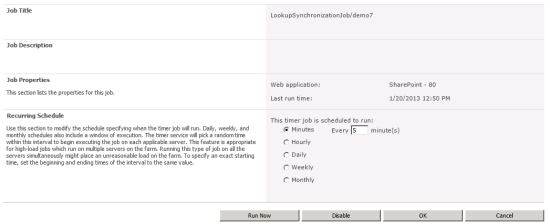

5. Let's create 2 projects that are programs: Program A and Program B (do not forget to set IsProgram field).

6. Wait for 5 minutes and start creation of new projects - and check values in dropdown for Program field:


That's it. If you do not create programs very often, you can set the job to run once a day or on any desired schedule.

Few more features of FluentPro Lookup Manager:

- Data can be synchronized from SQL Server as well as SharePoint data sources.
- We support multi-level lookup tables (data in source should use the separator for each element: Level1.Level2.Level3) Any number of hierarchy levels is supported and separator is configurable.
- Lookup Manager is not deleting elements, only adding new ones

In next post, we will describe how to implement support of programs using Autocomplete Manager.

Announcing EPM Pulse - Data Visualization Platform for Microsoft Project Server

REDMOND, WA, USA, January 15, 2013 — FluentPro Software Inc, a leading software development company for Microsoft Project Server platform, is pleased to announce the release of the new product for building dashboards for Project Server platform – FluentPro EPM Pulse – to the general public! Effective immediately, customers can purchase EPM Pulse directly from www.fluentpro.com or from over 15 partners and resellers all over the world.

As the one of leading software development companies for Project Server platform, FluentPro developed over 400 reports and dashboards for customers and partners. All these reports and dashboards solve specific problems of EPM reporting for customers and require IT engagement, however, they do not enable organizations to see all the data that Project Server stores or provide the ability to analyze the data and present it without additional processing.
EPM Pulse is closing this gap – platform allows any Project Server user to build contemporary project and portfolio dashboards using over 130 pre-built building blocks in dashboard designer using drag-and-drop, just in minutes, without any training and writing any code; share it with peers and present them to executives. Supporting over 12 different types of charts – from gauges and bar charts to the tables and scattered charts, EPM Pulse provides a solid platform for quality EPM dashboard design in minutes instead of days or weeks.

Sample dashboard:


“EPM Pulse is a revolutionary product for Project Server industry and is a great fit for companies that use or plan to start using Project Server. Project managers can start reporting and analyzing project progress the way they want to. Companies can increase transparency of their project management process and make it measurable. Building new dashboards with EPM Pulse takes just minutes, not days or weeks and there is no need to engage IT. Great advantages for business.” said Anton Kravtsov, co-founder of FluentPro Software Inc.

 EPM Pulse is available for 3 MS EPM Platforms:

  • Project Server 2007 
  • Project Server 2010
  • Project Server 2013 


To get started today, just go to http://www.fluentpro.com/productsepmpulse.html

FluentPro EPM Pulse is available as hosted option from Bemo (http://www.bemopro.com), our premier Project Server hosting provider.
Premier implementation partner for EPM Pulse is adaQuest, Inc. (http://www.adaquest.com)

About FluentPro 

FluentPro (http://www.fluentpro.com) is a certified Silver Microsoft Partner that specializes exclusively in product development, complex custom development and Business Intelligence for Microsoft Project Server 2010/2013. FluentPro has developed over 15 products, including popular FluentBooks – the only configuration management and migration software for Project Server 2010 / 2013, FluentPro Cloud Migrator that enables migration of Project Server 2010 configuration and data to Project Online. With one of the biggest team of software developers among MS EPM Partners, FluentPro delivered a number of custom development projects to customers and other EPM partners; helped partners to develop their products and bring them to the Project Server marketplace. FluentPro has offices in Redmond, WA, USA and Richmond Hill, ON, Canada and software development center in Ukraine.

Navigation between PWA and Project Site in Project Online / Project Server 2013

I wanted to review navigation between PWA and project details for sharepoint task list projects in Project Online.


When originally user clicks on Project in Project Center, user get to project details.


There is no link to Projects (Project Center) but there are 2 possible ways how to get there:
1. Click "back" in browser (if you just landed on it)
2. Click on Project Detail (highlighted on screenshot):


That will refresh screen and navigation and you will see the link to "Projects" available (highlighted).

For Enterprise Projects everything works just fine:


If you know faster way - please let me know. Thanks!

Project Online and OData

Project Online and OData
Our organization is implementing a pilot environment of Project Online for one organization that is looking to move their in-house 2010 to the cloud, and right now I'm researching the Project Online for how we can use reporting capabilities.

It looks really only option that is "out-of-the-box" is OData.


Accordingly to the document - only Adminstrator, Portfolio Manager and Portfolio Viewer can access OData feed. Project Managers cannot access data.

This slightly limits use of reporting on PWA for single project - Project Manager will have to use reporting capabilities in Project Professional 2013. 

This is a huge. People need to be able to create and view report on their data from PWA.

Excel Services - Project Online / Project Server 2013

We were playing with Excel Services to see how we can build reports and publish them to the web - same way as we did in 2010. Unfortunately it looks it is not possible now - and it seems this is a limitation of Project Online Preview.

So.
1. There is a step-by-step instruction how to do that - http://officepreview.microsoft.com/en-us/project-server-help/use-excel-2013-to-create-a-new-project-web-app-report-HA102923779.aspx?CTT=5&origin=HA102923896

2. When report is created and saved, you can open it in PWA. It opens absolutely fine - but it displays information that WAS already in Excel. 


It is kind of STATIC and in fact it will be outdated. When you try to get data connections refreshed - you get error that external data connection cannot be refreshed:


3. To refresh data, you need to edit it again in Excel 2013 by clicking on Edit Workbook and selecting Edit in Excel - go to DATA Tab and click on Refresh All.


Data will be refreshed, you can save it back to PWA.
I hope that at time of RTM, excel services reports in Project Online will be able to update data dynamically.

Small update:
There is article on TechNet about reporting: http://technet.microsoft.com/en-us/library/ff603998(v=office.15)


"In Project Online, Project Web App data for reporting is only available through the OData feed. The OData feed must be accessed through Excel 2013 Preview. OData reports can be published to the Business Intelligence Center and displayed using Excel Services, but the data cannot be refreshed using Excel Services"


Enjoy!

Accessing Project Sites in Project Online / Project Server 2013

There are few changes that are related how users access Project Sites in Project 2013 compared to Project Server 2010.

Before, in Project Center on a ribbon there was a button - Project Site. User was able by selecting a line in a list of project click on it and you will get the new window with project site open.


In Project Online this button is gone from ribbon from Project Center.


But - you still can access the Project Sites - and I would say that this was made even easier.

When you click on Project name, you get to the screen with all project related information and there are 2 ways to access the associated Project Site:


First one is button on Ribbon and second one is link  "Project Site" on the left side of navigation menu.

Enjoy!

Swtching Security Mode in Project Server 2013 Preview (On-premise)

Swtching Security Mode in Project Server 2013 Preview (On-premise)
As you know, by default Project Server 2013 has the SharePoint permission mode which is simplified if we compare it with Project Server mode. Some users, might benefit from it, some more advanced users might want to switch back to Project Server mode.

There is an article on TechNet how to change http://technet.microsoft.com/en-us/library/jj219486(v=office.15).aspx

So, quick summary: You have to run a powershell command - Set-SPProjectPermissionMode

Switching from SharePoint to Project Server mode:
Set-SPPRojectPermissionMode –Url http://projectserver2013/pwa -AdministratorAccount fluentpro\sp-farmadmin -Mode ProjectServer

Switching from Project Server to SharePoint mode:
Set-SPPRojectPermissionMode –Url http://projectserver2013/pwa -AdministratorAccount fluentpro\sp-farmadmin -Mode ProjectServer

Replace http://projectserver2013/pwa with you PWA URL and fluentpro\sp-farmadmin with your domain name \ user name.

Why there is no switch in UI like in Project Online? I have no idea - but this would be a good suggestion to Microsoft to add this into Central Administration in PWA settings.

Enjoy!

Project Online Preview - Project Server 2013 - Changing permission mode from SharePoint to Project Server

As you might know, by default Project Online has the SharePoint mode which is simplified if we compare it with Project Server mode. Some users, might benefit from it, some more advanced users might want to switch to Project Server mode.

There is a document on MSDN that compares two modes: http://technet.microsoft.com/en-us/library/fp161361(v=office.15)
So, how do you switch from SharePoint security mode to Project Server security mode?

When you created online tenant, you will have several sites available for you and one is SharePoint Administration Center. URL should look like following: https://<tenantname>-admin.sharepoint.com
You have 2 ways getting there:
  • Enter the URL
  • Click on the Admin link and selecting Project from your PWA Screen (visible If you are the Administrator)


Screen should look like following one:

To change the mode:
  1. Select project (checkbox) 
  2. Click on Project Web App button on ribbon and select Settings. 

On the screen please select the "Classic Permission Management" radio button which is Project Server Permission mode and click OK:


Important: Please note that changing modes clears all previous settings.

You can read more about SharePoint permission mode here: Plan SharePoint groups in Project Server 2013.
You can read more about Project Server permission mode here: Plan groups, categories, and RBS in Project Server 2013 Preview.
Enjoy!

Best way to evaluate Project Server 2013 / Project Online? Move you configuration and data from Project Server 2010!

Best way to evaluate Project Server 2013 / Project Online? Move you configuration and data from Project Server 2010!

This week Microsoft released the Project Online - a cloud edition of Microsoft Project Server 2013. This means, that companies can start evaluating online edition that offers ways for easy scaling and start saving on investments into hardware and software. You can start paying monthly for resource that you use only, no maintenance, no hardware, no software licenses, no electricity bills.

Companies who currently using Project Server 2010 and considering the Project Online as potential destination should evaluate the the Project Online from different angles:

  • User Interface
  • Usability
  • Scaleability
  • Performance
  • Support of existing configuration
  • Load testing
Some of this can be addressed with just out-of-the box functionality, but companies will face a reasonable issue  - How do we test Project Online with our configuration settings and with our data (projects, resources) from existing Project Server 2010 or Project Server 2010 instance?

FluentPro Software has a solution for this - FluentPro Cloud Migrator that allows migration of configuration and data from Project Server 2010 to Project Online.

There are 2 editions available - Free and Pro; Free Edition migrates everything except project sites content and security, Pro Edition can migrate all settings and data and you can use it after Preview.

You can download FuentPro Cloud Migrator from our website - www.projectmigrator.com.

Development of SharePoint Apps for Project Online / Project Server 2013

Development of SharePoint Apps for Project Online / Project Server 2013
Over last several month our company was involved in development of SharePoint App for Project Online for  one of the partners. Development is completed and shortly application will be published - but it was a tough journey.

If you are interested in development of SharePoint App for Project Server  2013 / Project Online - please feel free to contact us, we believe that we can help you - we've completed all steps, we know problems, constraints and can make this development successful.